
The menu hides as you type
The top menu hides automatically when you start typing.
Move to the top of the window or press F10 to bring it back.
WUFFI / WINDOWS MARKDOWN EDITOR
A minimal interface, built for writing.
Discuss your writing with AI right in the editor,
or ask it to revise a passage, without copying and pasting.

WHY WUFFI
Markdown editors are already mature. But the tools that feel good enough to use for years are often paid, or keep growing more complex.
Obsidian is powerful, but it feels more like a personal knowledge base and note-taking system than an editor built simply for writing.
I wanted to build a product with an extremely simple interface, made for writing. No complicated features or interface: just a clean, uncluttered experience that helps you focus on the text.
Writing is rewarding in itself, and people write for different reasons: blog posts, video scripts, business plans, journals, or simply to record everyday life. Creative work does not always have a direct financial return, but writing still calls for some productivity. Minimalism alone, without thinking about productivity, can fall out of step with the way we work.
That is why I also wanted to bring an AI agent into this minimal interface. You can discuss how to write something or ask for revisions right inside the editor, without copying and pasting. The aim is a smoother, more efficient writing process.
Wuffi is for people who enjoy the act of writing, welcome tools that help them work, and still want to keep their words their own.
The top menu hides automatically when you start typing.
Move to the top of the window or press F10 to bring it back.

Press Ctrl + J to open the AI panel.
Select a passage, then describe the change you want.

Suggested edits appear in the document.
Compare the changes and choose which sentences to apply.
MARKDOWN EDITING
Write in visual mode and check Markdown syntax when needed.
Documents and drafts stay on your computer.
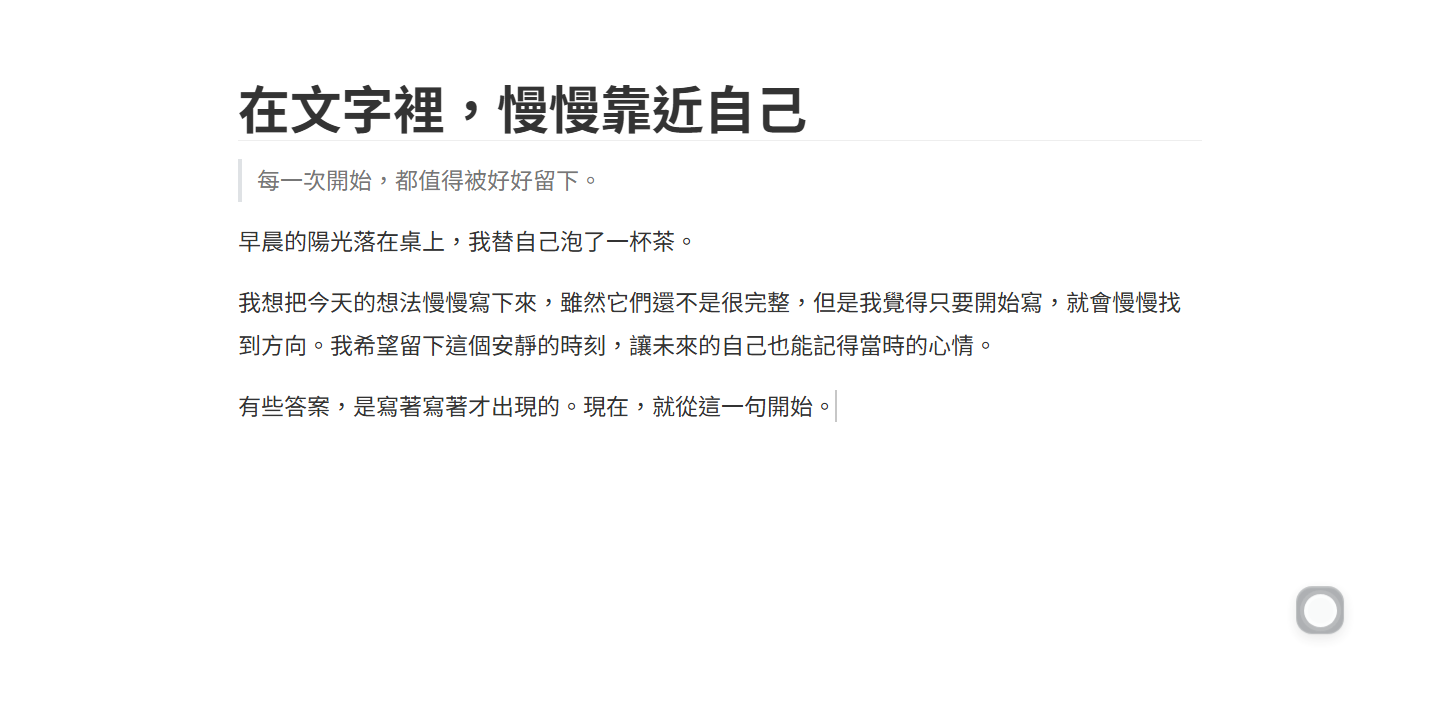
Focus mode F8 · Typewriter mode F9
Visual / source Ctrl + /
Save as a standard .md file Ctrl + S
AI preview AI REVIEW
Select a passage and give a specific instruction.
For example: “Shorten this passage, but keep my tone.”
Suggestions appear alongside your original text.
Accept one sentence, reject another, then keep editing.
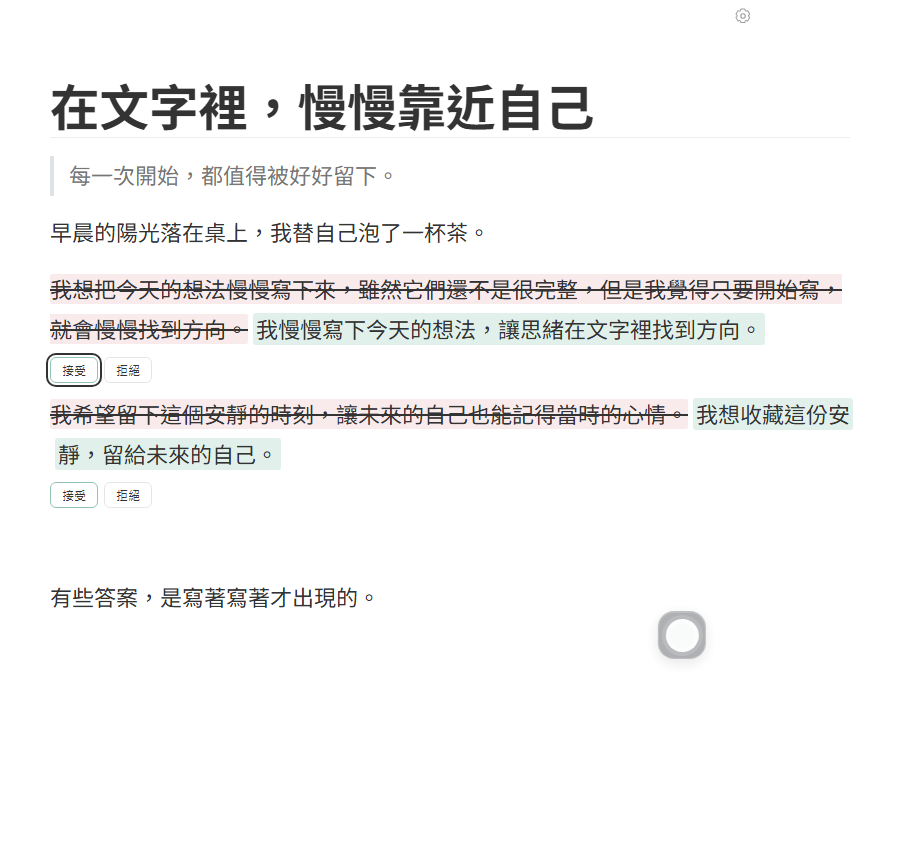
SEE IT IN 30 SECONDS
Select, ask, review the changes, and continue writing.
DOG ICONS
A dog icon opens the AI panel in Wuffi.
Preview six paper-collage illustrations here.
This selection changes only the website illustrations, not your app settings.

View the Golden Retriever paper-collage illustration.
VERSION & PRICING
Try all features for 7 days. A one-time license costs US$15.
The release is in preparation. Public downloads and purchases are not open yet.
No credit card and no automatic charge.
Try editing, drafts, and sentence-by-sentence AI review.
After the trial, enter a license key to restore editing and AI features.
Read the setup and AI guideUS$15 one-time payment
Polar handles payment and license delivery. Third-party model service fees are not included.
License and refund policyFAQ
Normal editing and draft recovery happen locally. When you use AI, the selected document content and conversation history are sent to the model service you configured. For a local model, make sure the endpoint points to your own computer. AI requests are not sent automatically as you type.
The editor does not install or start an AI model. You need to set up a compatible model service separately.See the setup steps。
Development and testing currently focus on Windows. Builds and device testing for macOS and Linux are not complete.
See the trial and license details.
See trial details