Compare voice typing apps, OS dictation, and meeting transcription tools
Before choosing speech-to-text software, check whether you are drafting new writing at a cursor or transcribing an existing audio recording:
| Comparison point | Wuffi AI voice typing (Alt + S) | Built-in Mac / Windows / mobile dictation | Meeting recording transcription apps |
|---|---|---|---|
| Best for | Drafting articles, essays, documentation, and notes by speaking directly into a Markdown editor | Dictating a quick 1–2 sentence reply in any system text field | Turning recorded interviews, calls, or lectures into timestamped transcripts |
| Filler words & self-corrections | Smart cleanup removes “um”, “uh”, and false starts, keeping the corrected meaning when you change your mind mid-sentence | Transcribes every hesitation and false start verbatim | Usually produces verbatim transcripts that must be edited by hand later |
| Punctuation & Markdown lists | Automatically adds punctuation and formats spoken steps or lists into Markdown bulleted or numbered lists | Often requires saying “period” or “new line” out loud | Outputs plain text blocks or subtitle files outside your writing editor |
| Custom vocabulary | Built-in 50-entry personal dictionary (terms plus misheard => correct rules) | Fixed system dictionary; frequently misspells product names and technical terms | Varies by provider and tier |
Why writers often abandon standard voice dictation after five minutes
Thinking out loud while composing an article sounds very different from reading a prepared script. With literal voice-to-text tools, three friction points quickly slow you down:
- Every hesitation lands on the page: Pausing to think leaves a trail of “um”, “like”, and repeated clauses that take longer to delete than typing from scratch.
- Mid-sentence corrections get mashed together: If you say, “We’re shipping on Wednesday—sorry, Friday afternoon,” literal speech-to-text prints both days side by side.
- Spoken lists become walls of text: Explaining three bullet points out loud produces a single run-on paragraph unless you manually dictate formatting commands.
How Wuffi’s AI dictation turns spoken thoughts into clean Markdown (illustrative)
In Wuffi, hold Alt + S to speak and release to insert (or tap Alt + S to toggle continuous recording, Esc to cancel). Once you finish a thought, Wuffi transcribes the segment and runs smart cleanup. The table below shows illustrative examples of how spoken input is structured:
| Scenario | What you say out loud (illustrative) | Literal voice-to-text output | Wuffi AI dictation output (illustrative) |
|---|---|---|---|
| Mid-sentence correction & fillers | “Um, so for this week’s update let’s cover three things—actually no, let’s stick to the two main blockers since design is still pending.” | Um so for this weeks update lets cover three things actually no lets stick to the two main blockers since design is still pending | For this week’s update, let’s stick to the two main blockers since design is still pending. |
| Spoken checklist | “Before launch we need to check three items: first the API timeout setting, second whether PDF export embeds fonts properly, and third the mobile menu.” | Before launch we need to check three items first the API timeout setting second whether PDF export embeds fonts properly and third the mobile menu | Before launch, we need to check three items: 1. The API timeout setting 2. Whether PDF export embeds fonts properly 3. The mobile menu |
Prefer raw transcription? You can switch between Natural, Formal, Casual, and Verbatim modes in voice settings at any time, and inspect both the raw transcript and cleaned output from your most recent recording. If your quota runs out or cleanup fails, Wuffi always preserves the raw transcript so you never lose spoken words.
Personal dictionary: fix recurring names, acronyms, and technical terms
General speech-to-text models often mishear brand names, character names, or developer jargon. Wuffi includes a personal dictionary (up to 50 entries) in voice settings:
- Custom terms and names: Add proper nouns, technical terms, or multilingual phrases you use frequently.
Misheard => Correctmappings: Define explicit replacement pairs for words that voice recognition repeatedly gets wrong. Your dictionary is stored locally in your browser and sent only when you use voice input.
A two-step workflow: dictate with Alt + S, then refine inline with Alt + A
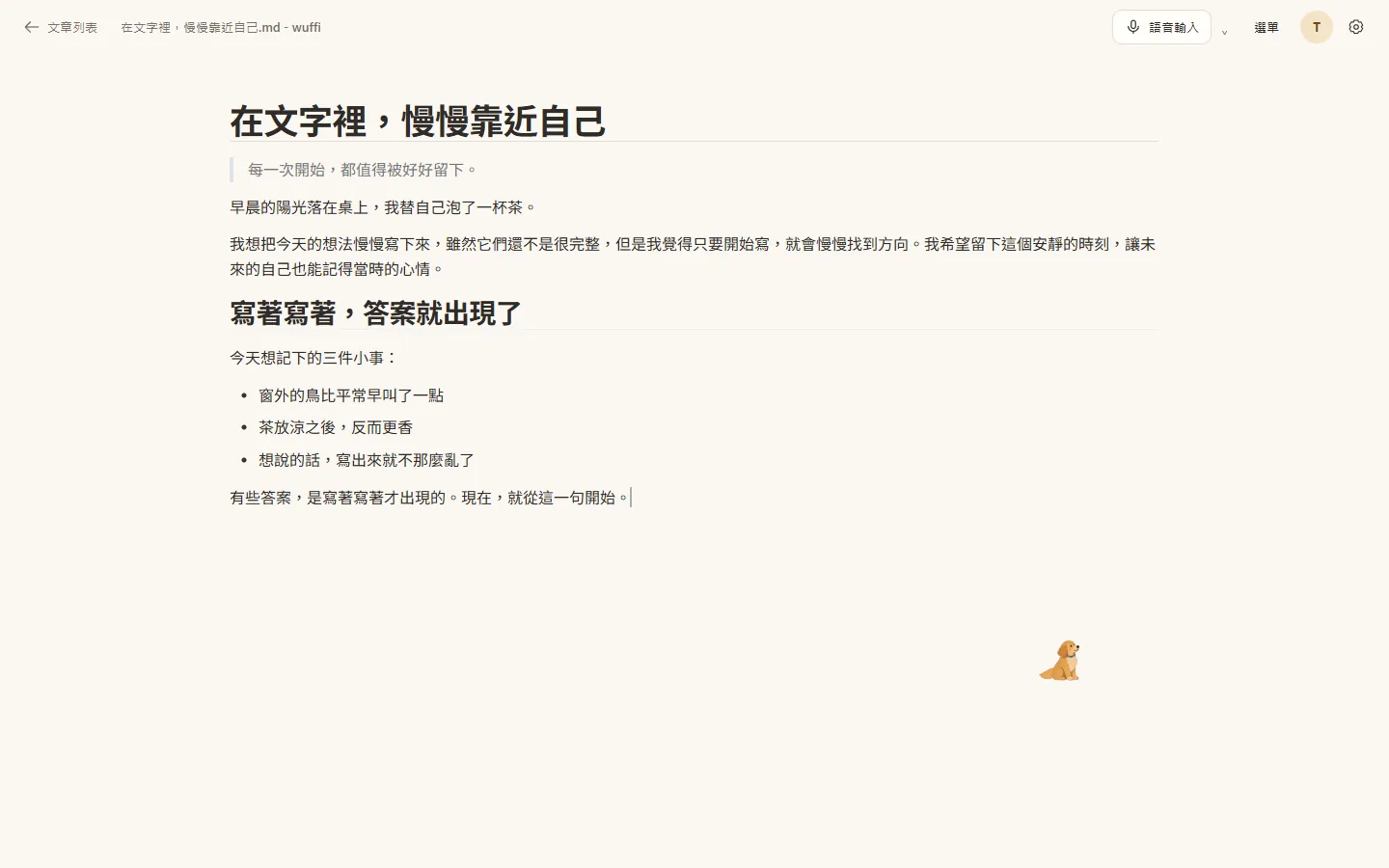
- Speak the rough draft (Alt + S): Talk through your argument at the cursor—or even inside the AI prompt box—without worrying about phrasing. Each recording inserts only at your cursor and never alters paragraphs you already wrote.
- Review edits sentence by sentence (Alt + A): Select the dictated passage and press Alt + A to use Wuffi’s inline sentence and paragraph rewriter. Accept or reject each proposed sentence side by side.
- Export clean files: Save standard
.mdfiles or export to PDF, Word (DOCX), and EPUB directly from your browser.
Common questions
Does Wuffi work as dictation software for Mac, Windows, and Linux?
Yes. Because Wuffi runs in any modern browser at app.wuffi.app, you can use Alt + S voice typing on macOS, Windows, Linux, and mobile browsers without installing OS-specific audio drivers.
Can I upload an existing MP3 or Zoom recording to transcribe?
No. Wuffi is designed for live voice typing while you write (Alt + S), not batch transcription of pre-recorded audio files.
Are my voice recordings stored or used to train AI models?
No. Audio is transmitted only when you activate Alt + S, discarded immediately after transcription, and never used to train AI models. Read our privacy policy for details.
How many voice typing minutes are included in the free trial and paid plans?
Signing in with Google gives you a 7-day free trial with 30 voice minutes per day (no credit card required). Paid plans (US$15/month or US$144/year) include 900 voice minutes per month plus AI editing quota.