Convert Markdown to PDF or Word (DOCX) in 3 steps
Whether you have a local .md file on disk or a block of Markdown copied from a note or chat window, you can turn it into a formatted PDF or Word document without installing command-line packages:
- Open or paste your Markdown: Go to app.wuffi.app, press Ctrl + O to open a
.mdfile, or paste your raw Markdown text into the editor. - Verify headings and layout in visual mode: Press Ctrl + / to toggle between raw Markdown source and visual mode (or use side-by-side split preview) so you can spot any unclosed code fences or broken tables before exporting.
- Export your file: Open the top menu and choose File → Export, then select PDF, Word (DOCX), HTML, EPUB, ODT, or LaTeX.
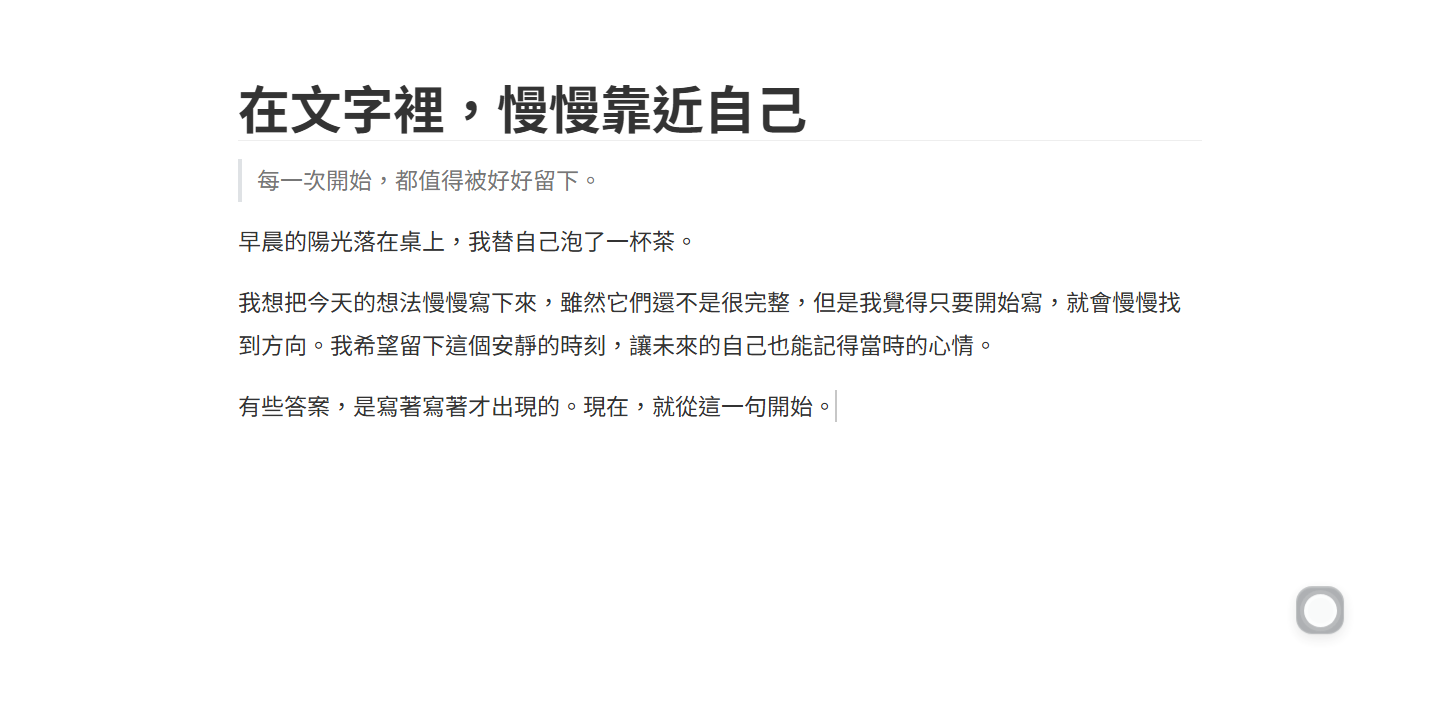
Three ways to convert Markdown to PDF and Word compared
Depending on whether you are exporting a single draft or automating builds, here is how the main approaches compare:
| Method | Best for | Strengths | Trade-offs |
|---|---|---|---|
| Wuffi browser editor & export | Writers who want to preview, fix typos, or run sentence-by-sentence AI review right before exporting | No install; combines visual/source Markdown editing, voice dictation, inline AI review, and one-click PDF/DOCX/EPUB export | Requires signing in with a browser |
| Single-purpose upload converters | Converting a finished file with zero text edits | Quick file upload in a browser tab | If you spot a typo or a broken table in the output, you must fix it in another app and re-upload |
| Local Pandoc CLI + LaTeX | Automated developer pipelines and custom academic templates | Scriptable batch conversion and deep template customization | Requires command-line setup and a multi-gigabyte TeX distribution for PDF output |
Why Markdown-to-PDF and Word exports break: 4 things to check
Most layout issues in exported PDFs and Word documents come from four small quirks in the underlying Markdown file:
- Keep heading levels sequential: Start with a single
#(H1) and step down to##(H2) and###(H3) in order. Jumping straight from H1 to H4 makes Word’s navigation pane and heading styles look inconsistent. - Watch wide Markdown tables: Markdown tables do not specify column widths. A table with eight columns may look fine on a wide monitor but will cramp or clip on a portrait PDF page. Split wide tables or convert dense notes into bulleted lists before exporting.
- Check local relative image paths: If your
.mdfile references./assets/diagram.pngon your computer, pasting only the text into a web converter will leave a broken image icon. Upload or paste images directly into the document in Wuffi so they are bundled into the exported PDF or DOCX. - Leave blank lines around lists and code blocks: Always put an empty line before and after a bulleted list (
-) or fenced code block (```) so parsers do not merge them into the preceding paragraph.
Tighten awkward phrasing before you send the PDF (without leaking draft marks)
When you export a Markdown draft to PDF or Word, it usually means someone else is about to read it. Instead of copying paragraphs into a separate chat window for a final polish, you can select any section in Wuffi and press Alt + A to request a focused revision.
Proposed changes appear inline so you can accept or reject each sentence individually. Most importantly for document export: any AI suggestion you have not explicitly accepted is automatically excluded when you save, copy, or export to PDF, Word, or .md. You never have to worry about half-reviewed suggestions slipping into a client deliverable.
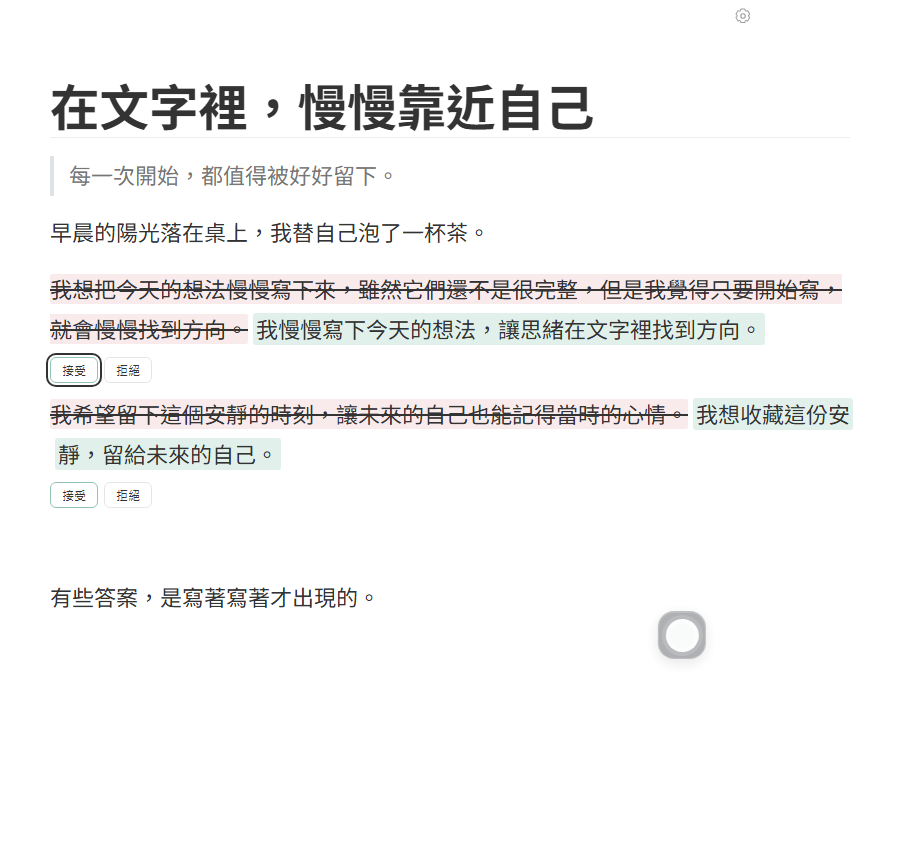
Learn more in our online AI Markdown editor guide, or compare local and browser workflows in our Wuffi vs Typora comparison.
Common questions
Can I convert a Word (.docx) file back into Markdown?
Yes. Wuffi imports Word (DOCX) files so you can edit headings, lists, and paragraphs as clean Markdown and save them as a standard .md file or re-export to PDF.
Do I need a paid subscription to export Markdown to PDF or Word?
No. New accounts include a 7-day free trial with no credit card required. Even after the 7-day trial ends, editing, saving, and exporting documents to .md, PDF, and Word remain available; a paid plan (US$15/month or US$144/year) is only required to continue using built-in AI review and voice input.
Can I export all of my Markdown files and images at once?
Yes. In addition to exporting individual documents to PDF, Word (DOCX), HTML, EPUB, ODT, and LaTeX, you can click “Download all data (ZIP)” on your account page at any time to download every Markdown file and image together.