Why copying drafts into a chat window slows down real editing
Asking a chatbot to polish a paragraph feels fast at first, but once an article has headings, links, and careful phrasing, moving text back and forth becomes tedious:
- You have to spot the differences by eye: A chat window returns a brand-new block of text. You have to read both versions side by side to notice whether it quietly dropped a qualifier or changed a number.
- Your voice gets flattened: You may only want to tighten two clumsy sentences, but the model rewrites the entire paragraph in generic corporate prose.
- Markdown structure gets separated from context: Pasting a single paragraph hides the surrounding sections from the model; pasting a whole document risks breaking links, image paths, or tables when you copy it back.
If your goal is not “generate an essay from scratch” but “I wrote a draft and want to tighten specific passages without losing my voice,” keeping proposed edits inside the Markdown document is much easier to verify.
Three online Markdown and AI editing workflows compared
Here is how revising inside Wuffi compares with pasting drafts into a separate chat window or editing without AI:
| Workflow step | Wuffi online Markdown editor | Standard editor + chat window copy-paste | Manual Markdown editing without AI |
|---|---|---|---|
| How AI edits appear | Select a passage (Alt + A); proposed changes appear inline in the article so you can accept or reject each sentence | Chat returns a rewritten block; you paste it back and compare changes manually | No AI suggestions; every revision is typed by hand |
| Getting a rough draft down | Type on the keyboard or press Alt + S to dictate by voice (each 1-second pause sends a sentence to the cursor) | Type, or use a separate transcription tool and copy the text over | Type on the keyboard |
| Markdown formatting | Edits happen inside the document; unaccepted suggestions are excluded from saves, copies, and exports | Headings, links, and tables must be checked after pasting back | Full manual control over raw Markdown |
| Files and portability | Cloud auto-save (up to 50 versions per document) plus instant .md, DOCX, PDF, EPUB, or full ZIP download | Depends on your editor; revision history is split between the editor and chat threads | Depends on your local or cloud editor |
Turn revision back into sentence-level decisions
In Wuffi, AI never overwrites your draft automatically. When you select a passage and press Alt + A, you can give a focused instruction such as: “Make this paragraph shorter, keep the first-person voice, and preserve every date and proper noun.”
- See proposals in context: Suggested deletions and replacements appear right inside your paragraph so you can read how they flow with the surrounding sentences.
- Accept or reject one sentence at a time: Keep the sentence that tightened a rambling clause, and reject the one that replaced your wording with a cliché. Accepted changes can still be undone individually.
- Unaccepted proposals stay out of your file: Any suggestion you have not accepted is left out when you save, copy text, or export to
.md, PDF, or Word.
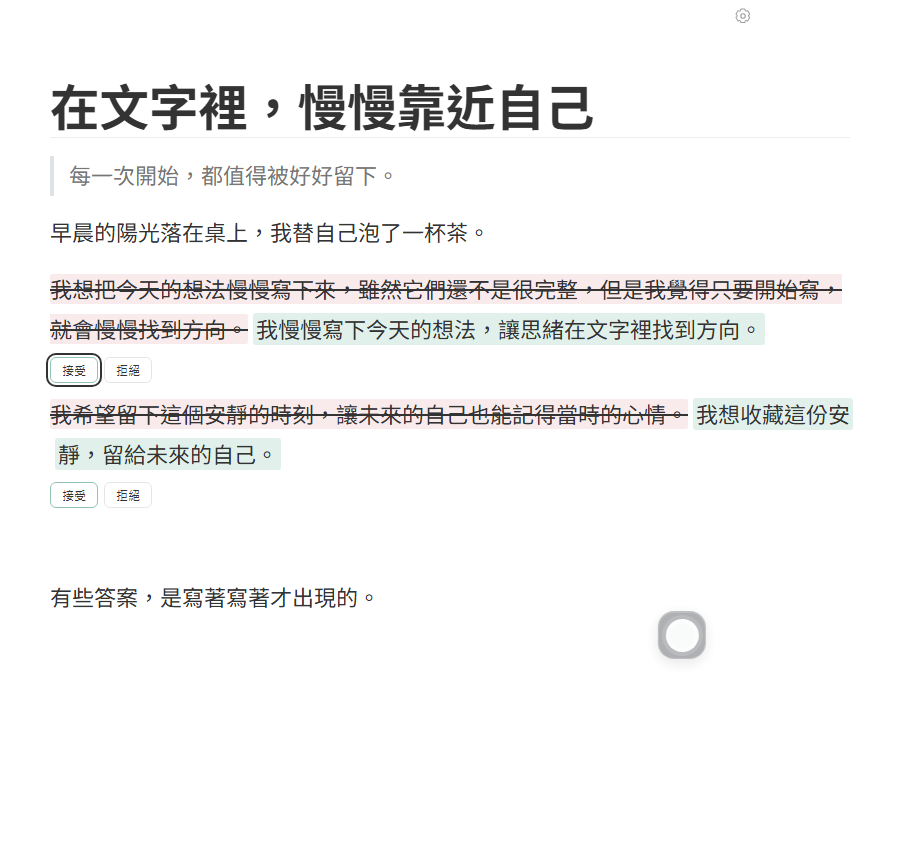
Inline review makes changes visible, but it does not verify facts for you. Numbers, citations, and domain judgments always remain the author’s responsibility.
When you are stuck on a blank page, speak the first draft at your cursor
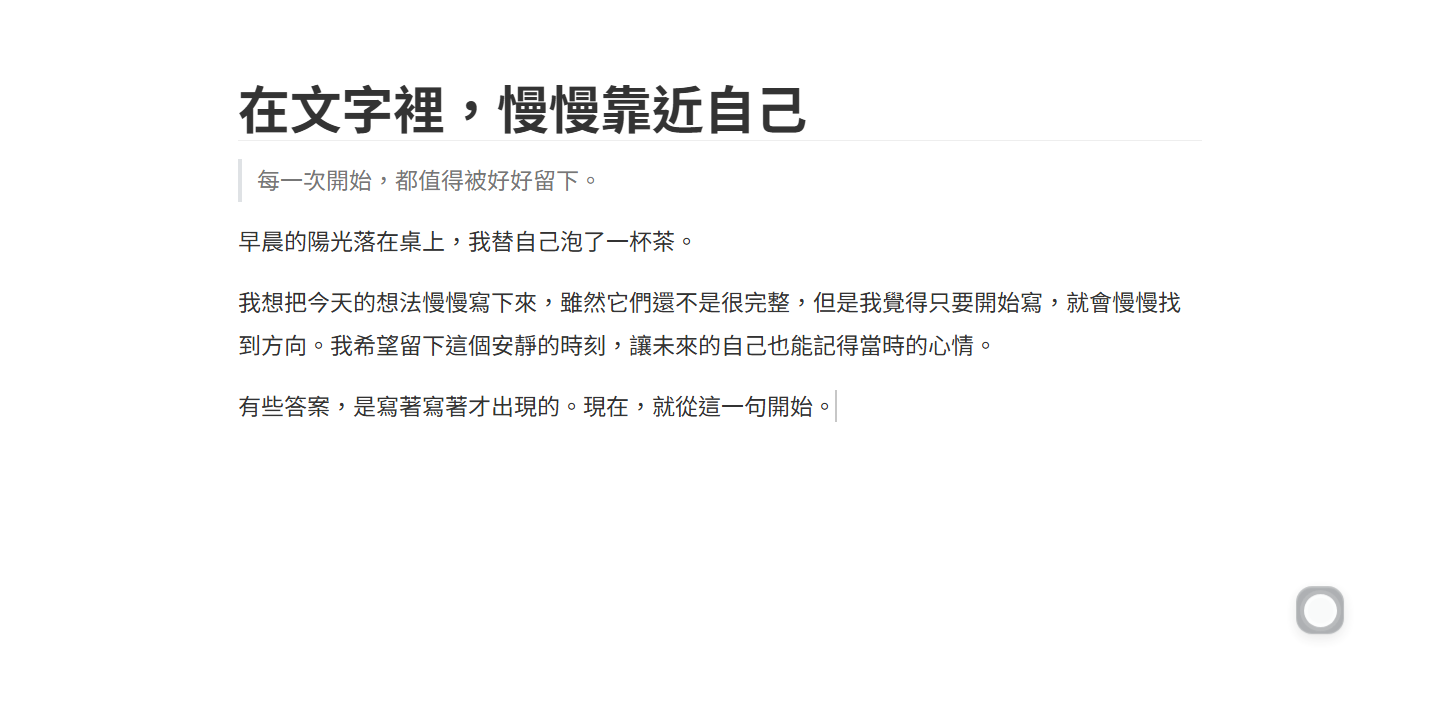
Typing a polished opening paragraph from scratch is often the slowest part of writing. Explaining the idea out loud is usually much faster. Pressing Alt + S in Wuffi starts voice input right where your cursor is:
- A one-second pause sends each sentence: Whenever you pause briefly between thoughts, that sentence lands at your cursor immediately without waiting for a long recording to finish.
- Dictate first, then tighten inline: Speak a rough paragraph into the document, select the spoken sentences, and press Alt + A to clean up filler words while reviewing each change sentence by sentence.
Cloud sync across devices without locking in your .md files
Two common concerns with browser-based editors are file lock-in and data privacy:
- Standard
.mdfiles you can take anywhere: Wuffi saves your work in the cloud and keeps up to 50 historical versions per document (with snapshots every 10 minutes), while keeping standard Markdown underneath. You can open local.mdfiles, download individual.mdfiles, or click “Download all data (ZIP)” on your account page to export every document and image at once. Word (DOCX), PDF, HTML, EPUB, ODT, and LaTeX import/export are also built in. - No model training on your writing: We do not sell your data or use your documents to train AI models or target ads. Text or audio is sent only when you submit an AI request or use voice input, routed through OpenRouter to OpenAI under provider settings that do not retain or train on your data; audio recordings are discarded after transcription. Read our privacy policy for details.
Need to share a finished draft as a document? Read our Markdown to PDF and Word (DOCX) export guide, or see our Wuffi vs Typora workflow comparison.
Common questions
Do I need my own OpenAI API key to use Wuffi online?
No. Voice input and AI review are built into the web app. Sign in with Google at app.wuffi.app to start a 7-day free trial (15 voice minutes and 50k AI tokens per day) with no API key setup.
Does the 7-day free trial require a credit card, and what happens when it ends?
No credit card is required, and there is no automatic charge when the trial ends. After the trial, you can still sign in to edit, save, and export your documents; continuing to use built-in AI and voice costs US$15/month or US$144/year (900 voice minutes and 9M AI tokens per month).
Can I continue writing on Mac, Linux, or my phone?
Yes. Because Wuffi runs in the browser, you can sign in on Windows, Mac, Linux, or mobile browsers to access the same cloud documents and version history.
Can I use Wuffi as a clean online Markdown editor without turning on AI?
Yes. The AI panel and voice input only appear when you press their button or shortcut. While you type, the top menu hides automatically so you can write in visual mode, source mode (Ctrl + /), or split preview without distractions.